Videos claim that artificial intelligence can already rebuild software like Photoshop. Understand what's possible with reverse engineering, decompilation, and recompilation.
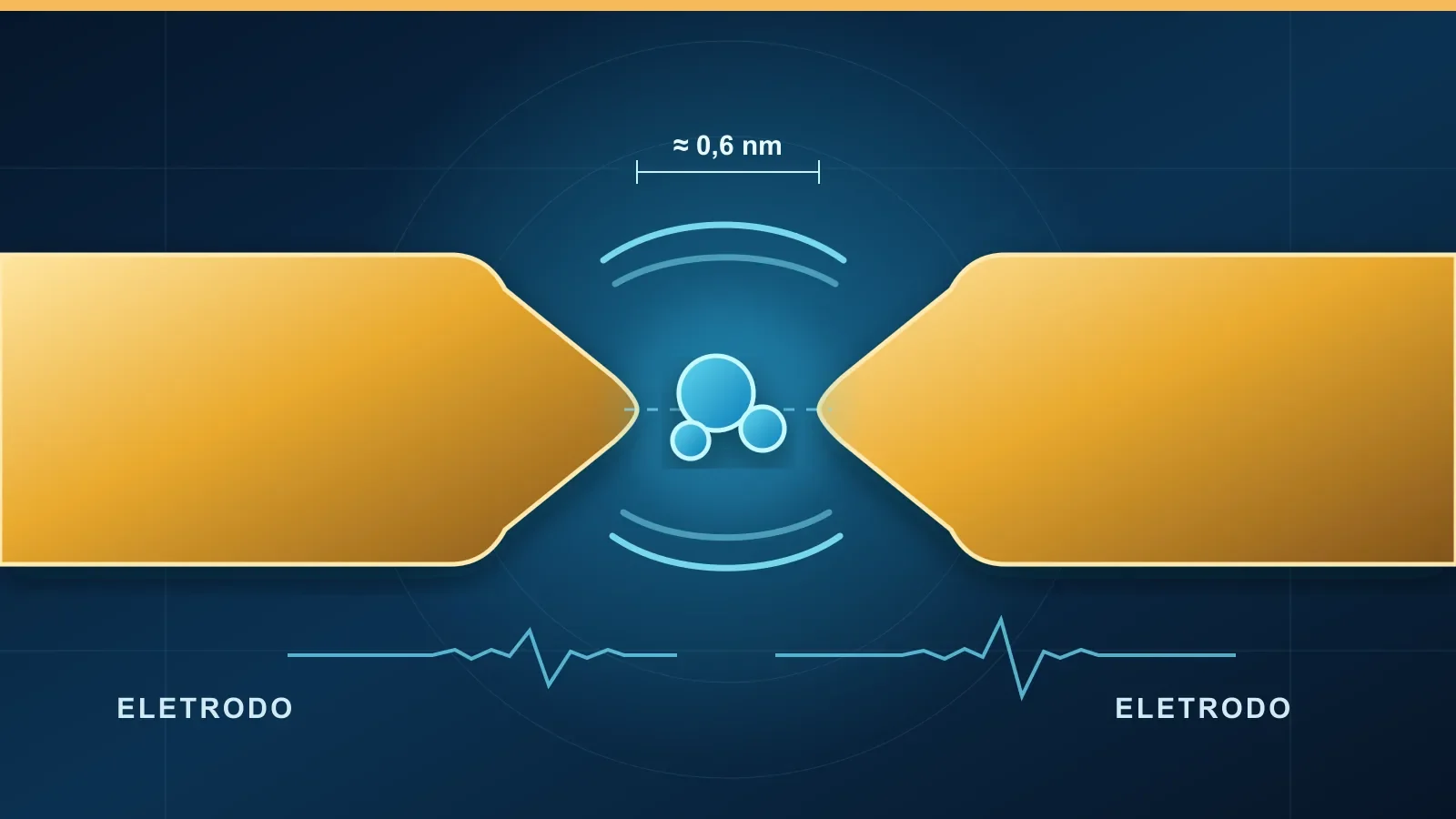
A gold sensor reads amino acids molecule by molecule. Understand the search for biosignatures, the role of AI, and why the method still doesn't prove life beyond Earth.
By Ederson Andrade · 5 min read
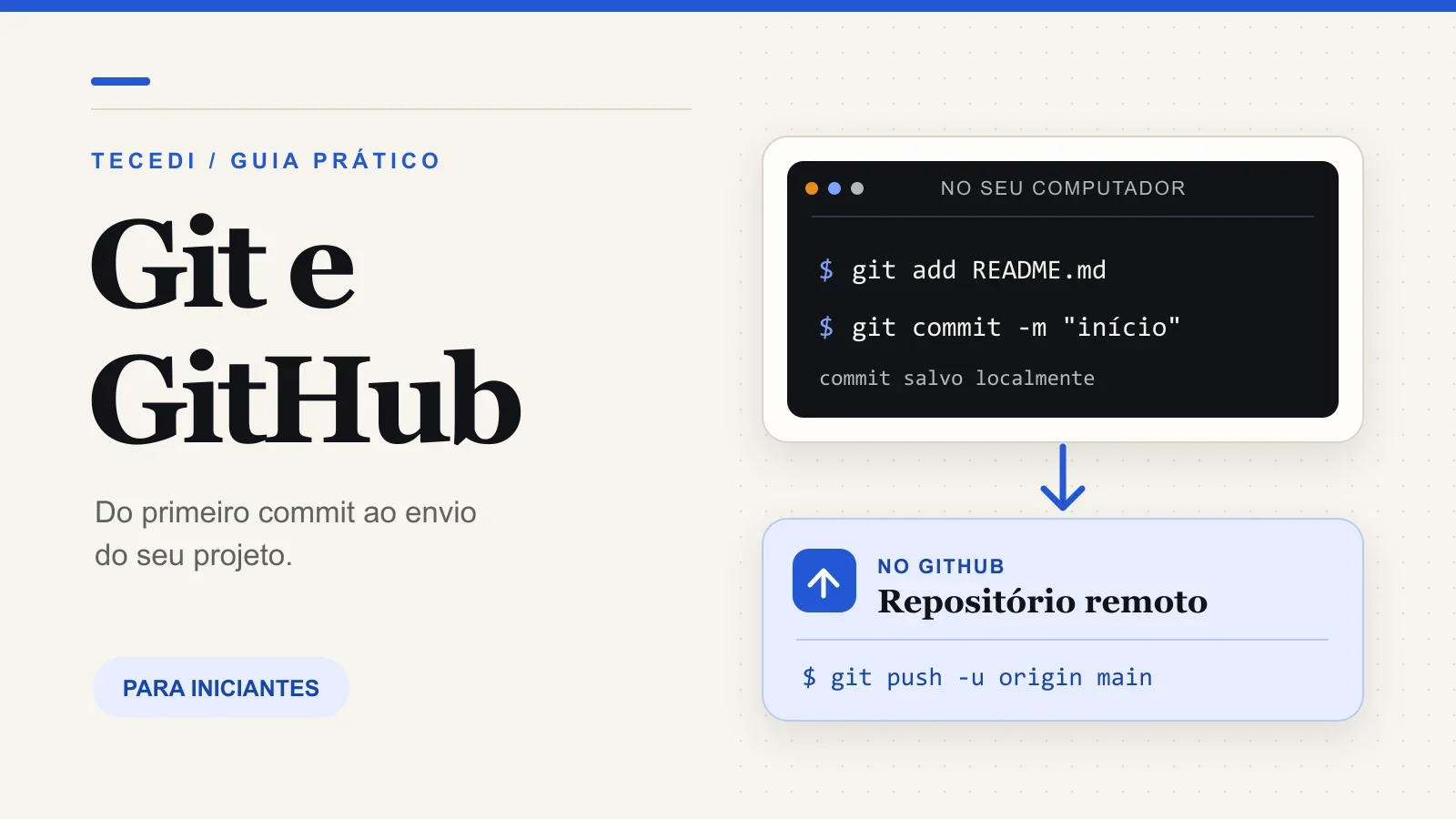
You're just starting to code and someone asked you to "upload the project to GitHub". The phrase sounds simple, but it brings together two different tools. Git Records changes to your project files. GitHub is a service that can store a copy of that repository on the internet and help others collaborate on it. You can use Git without creating a GitHub account.
In this guide, we'll create a small project, save two versions, and submit the result to GitHub. Terminal blocks only contain commands; type one at a time. You don't have to memorize everything. The goal is to understand the path a change takes, from the file on the computer to the
Git and GitHub: What's the difference?
Imagine you're writing a game. Today it works, tomorrow you change a rule, and you accidentally break the scoreboard. If you saved a previous version with Git, you can figure out what changed and recover the work. Each recorded version is a commit: a photograph of the status of the archives chosen at that time.
Git works on your computer and keeps the history inside a hidden folder called .git. GitHub hosts Git repositories and adds pages to view code, discuss changes, open issues and review pull requests. Other platforms also host Git repositories; GitHub is one of them.
Term
In simple words
Repository
Project folder tracked by Git, with its change history
Commit
Record a version of the selected files, with a message explaining the change
Branch
Separate line of work, used to develop an idea without immediately touching the main line
Remote
Address of another repository, such as the copy hosted on GitHub
Pull request
Proposal to review and merge changes from one branch to another on GitHub
The most important point is this: saving a file, making a commit, and committing that commit to GitHub are three distinct actions. The commit is local. It only appears in the remote repository after a git push.
Before you begin: Install and configure Git
Install Git from Official Website and open the system terminal, Git Bash, or the editor's built-in terminal. Confirm the installation:
git --version
The command should show a version number. Then, configure the name and email that will be associated with your commits. Replace the examples with your data; use an email linked to your GitHub account if you want the platform to associate the commits with your profile.
--global Applies this identity to your user's repositories on that computer. You can check it with git config --global user.name e git config --global user.email. These commands do not log in to GitHub. They only identify the authorship of the commits.
First exercise: Keep track of a folder with Git
Create an empty practice folder and sign in. The sample works in PowerShell, Git Bash, and common macOS and Linux terminals:
mkdir meu-primeiro-projetocd meu-primeiro-projetogit init -b main
git init -b main creates the local repository and calls the first branch of main. He No creates anything on GitHub. Open the folder in your editor, create a file README.md with the text below and save it:
# Meu primeiro projetoEstou aprendendo Git e GitHub.
O README.md is the presentation of the project; on GitHub, it usually appears on the repository's home page. Now ask Git what happened:
git status
The file will appear as untracked or "untracked". This means that it exists in the folder, but hasn't yet been included in a commit. git status It's a good first command whenever you don't know what situation the project is in.
Choose what goes into the first commit
Git has a staging area, called Staging Area. git add Puts the current version of the files you want to register in it. For this exercise, choose only the README:
git add README.mdgit statusgit diff --cached
After the git add, the git status Must show README.md among the changes ready for the next commit. git diff --cached shows the prepared content. It is a last check before recording the release.
If you edit the README then to run git add, prepare it again. Git records in commit the version that was in the staging area, not necessarily the most recent version that was left open in the editor.
Register the first version:
git commit -m "Adiciona apresentação do projeto"git log --oneline
git commit -m creates the local record, and the quoted message explains what was done. git log --oneline shows a summary of history. If Git complains about missing name or email, go back to the previous configuration; a GitHub account does not replace this step.
Make a second change
In the editor, add a line to the end of README.md and save:
Este repositório será usado para praticar comandos básicos.
Before you prepare for the change, here's the difference between the current file and the last commit:
git diffgit add README.mdgit diff --cachedgit commit -m "Explica o objetivo do repositório"git log --oneline
You should now see two commits. The first preserves the initial presentation; the second registers the new text. Note that git diff shows changes not yet prepared, while git diff --cached shows what will go into the next commit.
How to submit your project to GitHub
Enter the GitHub and create a repository called meu-primeiro-projeto. To connect This local project has already started, leave the options to create README unchecked, .gitignore and license on the site. This way, the remote repository starts empty and avoids an unnecessary conflict with the commits we just made. Choose whether it will be public or private and copy the HTTPS URL shown on the screen.
In the terminal, still inside the project folder, replace SEU-USUARIO by your GitHub username:
origin it is just the usual name given to the remote address. git remote -v allows you to check if the URL is correct. git push -u origin main pushes the commits from the branch main and establishes an association with the remote branch. After that, it's usually enough git push to push new commits made to that branch.
GitHub may open an authentication window in the browser. For HTTPS connections, the GitHub documentation recommends Git Credential Manager or GitHub CLI; the account password is not entered as a regular password in the git push. Alternatively, you can configure SSH keys later. After the push is complete, refresh the repository page to see the README and both commits.
What about when the project already exists on GitHub?
The previous path started in a local folder. If the repository already exists on GitHub and you want to download it to another computer, use clone, in a folder where a directory with the same name does not yet exist:
git clone https://github.com/SEU-USUARIO/meu-primeiro-projeto.gitcd meu-primeiro-projetogit status
git clone Download the files and the history and already set up the remote origin. No need to run git init or git remote add origin in that cloned project. If someone else pushes commits to the repository while you're working, git pull Brings in and integrates updates from the current branch. In team projects, check the state of files before integrating changes.
What is a branch for and what is a pull request?
Once you understand commits and push, you can try it without immediately changing the main. From there, create a branch to improve the README:
git switch -c melhora-readmegit status
Edit the README, save and record the change in this branch:
git add README.mdgit commit -m "Melhora as instruções do README"git push -u origin melhora-readme
On GitHub, open a pull request of melhora-readme to main. It shows you what's changed and lets you review and discuss before joining the two lines of work. Pushing a branch to GitHub doesn't automatically change the main; the change enters it after the merge of the pull request. If you're just practicing, you can open the order and watch the comparison without merging.
Care that avoids problems from the first project
Before preparing files, use git status and check out the names. git add . It can be useful, but it includes all eligible changes to the folder; in the beginning, adding specific files helps avoid surprises. Don't put passwords, tokens, API keys, or files .env in the repository. A private repository is also not a suitable place to keep secrets.
In projects that generate dependencies or local files, create a .gitignoreBefore of the first commit. For example, in a project Node.js:
node_modules/.env.env.*!.env.example
O .gitignore Prevents files that have not yet been tracked from being added by default. It does not delete a secret that has already been sent to the history; in this case, you must revoke or change the credential. A GitHub documentation on skipped files It also explains how to stop tracking a file that has already been included.
Finally, Git doesn't publish a site on its own. GitHub stores and presents the repository, but getting an application live requires its own hosting or deployment step. To practice today, just repeat the cycle Edit → check with git status e git diff → prepare with git add → register with git commit → send with git push. When each step makes sense, branching and collaboration become much less mysterious.